<article>

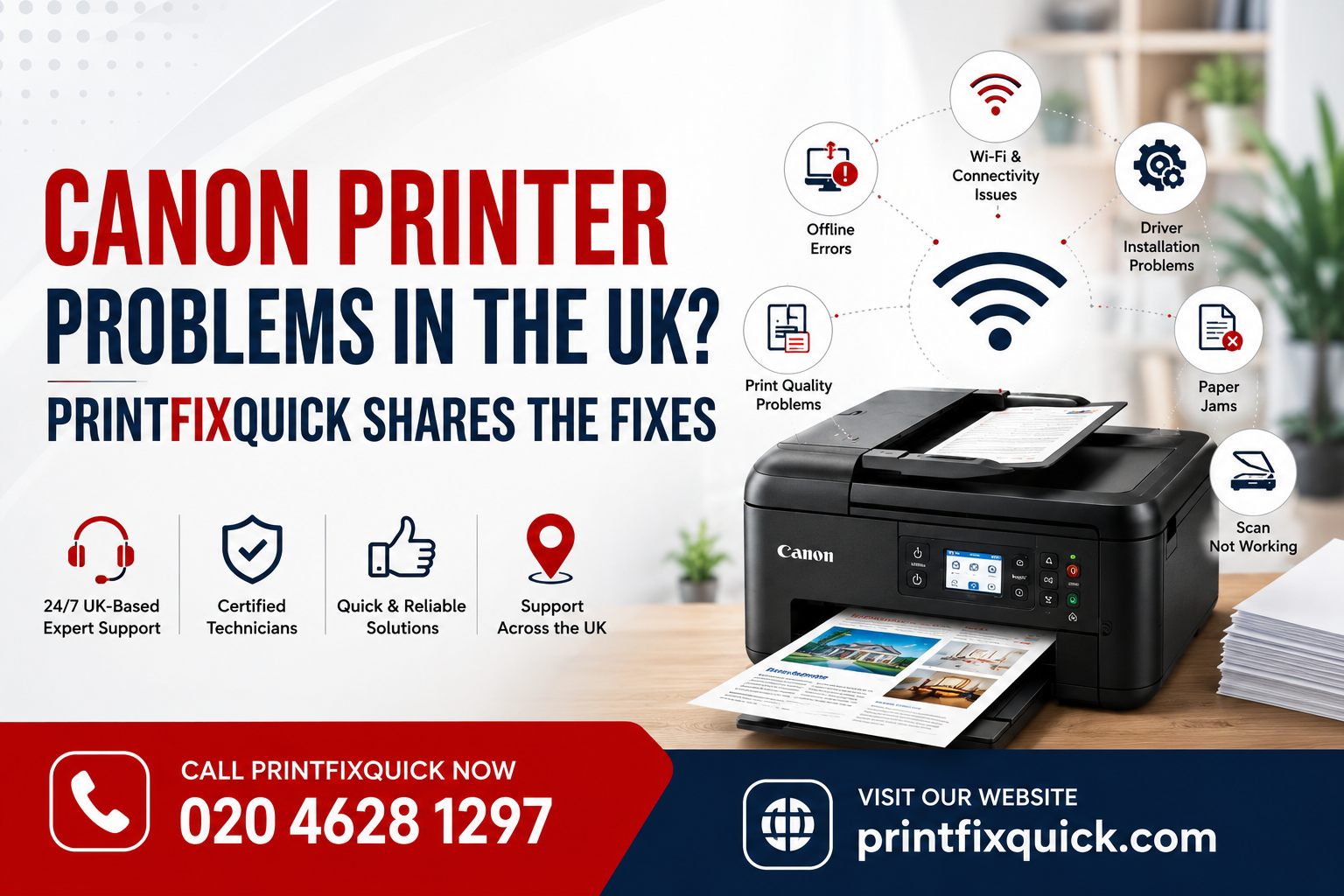
  <h1>Canon Printer Problems in the UK? PrintFixQuick Shares the Fixes</h1>

  <p>
    <strong>PrintFixQuick</strong> is a UK-based printer support service helping customers
    troubleshoot common Canon printer problems, including printer offline errors,
    Wi-Fi connectivity issues, driver installation problems, paper jams, scanning issues,
    and poor print quality.
  </p>

  <p>
    This guide provides simple, step-by-step solutions for some of the most common
    Canon printer problems searched by UK users. Whether you use a Canon PIXMA,
    MAXIFY, imageCLASS, or another supported Canon printer, these troubleshooting
    steps can help you identify and resolve many everyday issues.
  </p>


  <h2>Why Does My Canon Printer Keep Going Offline?</h2>

  <p>
    A Canon printer may appear offline because of a temporary Wi-Fi connection problem,
    a changed router password, printer sleep mode, an incorrect default printer setting,
    or a stuck print job.
  </p>

  <p>
    Restarting the printer and router can resolve temporary connectivity problems.
    If your Canon printer repeatedly returns to offline status, you may need to check
    the printer driver, print queue, or network configuration.
  </p>

  <h3>Quick Fix for a Canon Printer Showing Offline</h3>

  <ul>
    <li>Restart your Canon printer.</li>
    <li>Restart your Wi-Fi router.</li>
    <li>Make sure your computer and printer are connected to the same network.</li>
    <li>Open your computer's printer settings and confirm that the correct Canon printer is selected.</li>
    <li>Set your Canon printer as the default printer if required.</li>
    <li>Clear any stuck jobs from the print queue.</li>
    <li>Restart the printer and print a test page.</li>
  </ul>

  <p>
    If your Canon printer continues going offline after these steps,
    <strong>PrintFixQuick</strong> can help you troubleshoot the connection,
    driver, and printer configuration.
  </p>


  <h2>How Do I Connect a Canon Printer to Wi-Fi?</h2>

  <p>
    Canon printer Wi-Fi setup varies depending on the model. Many printers allow you
    to select your wireless network directly from the printer's control panel or
    wireless setup menu.
  </p>

  <h3>Canon Printer Wi-Fi Setup Steps</h3>

  <ol>
    <li>Place the printer within a reliable range of your Wi-Fi router.</li>
    <li>Turn on the Canon printer.</li>
    <li>Open the printer's <strong>Wireless</strong>, <strong>Wi-Fi</strong>, or <strong>Network Setup</strong> menu.</li>
    <li>Select your wireless network name.</li>
    <li>Enter your Wi-Fi password carefully.</li>
    <li>Wait for the printer to confirm that the connection is successful.</li>
    <li>Open the printer settings on your computer, tablet, or phone.</li>
    <li>Add or re-add your Canon printer.</li>
    <li>Print a test page to confirm the connection.</li>
  </ol>

  <p>
    Some Canon models and older printer models may have specific wireless network
    requirements. Always check the specifications for your exact printer model if the
    connection fails.
  </p>


  <h2>Why Won't My Canon Printer Driver Install or Update?</h2>

  <p>
    Canon printer driver installation can fail because of an outdated or incorrect
    driver, an operating-system update, damaged installation files, or a conflict with
    an older printer installation.
  </p>

  <h3>How to Fix Canon Printer Driver Problems</h3>

  <ul>
    <li>Identify the exact Canon printer model.</li>
    <li>Check whether your computer uses Windows or macOS and confirm the operating-system version.</li>
    <li>Download the appropriate software from Canon's official support website.</li>
    <li>Avoid unofficial third-party driver download websites.</li>
    <li>Remove an old or corrupted Canon printer installation if necessary.</li>
    <li>Install the correct Canon driver package.</li>
    <li>Restart your computer after installation.</li>
    <li>Reconnect the printer and print a test page.</li>
  </ul>

  <p>
    Using the official Canon support website is important because third-party download
    websites may contain incorrect software or unwanted applications.
  </p>


  <h2>How Do I Clear a Paper Jam in a Canon Printer?</h2>

  <p>
    A Canon printer paper jam may occur because paper has been loaded incorrectly,
    several sheets have entered the printer together, paper is damaged, or a small
    piece of paper remains inside the paper path.
  </p>

  <h3>Canon Printer Paper Jam Troubleshooting</h3>

  <ol>
    <li>Turn off your Canon printer.</li>
    <li>Disconnect the power cable if appropriate for your model.</li>
    <li>Open the printer's front or rear access panel.</li>
    <li>Locate the jammed paper.</li>
    <li>Gently remove the paper without tearing it.</li>
    <li>Check for small pieces of paper remaining inside the printer.</li>
    <li>Close all printer panels securely.</li>
    <li>Reload clean, undamaged paper and align the paper guides.</li>
    <li>Turn the printer back on and run a test print.</li>
  </ol>

  <p>
    Do not force paper out of the printer. If paper jams occur repeatedly, there may
    be an issue with the paper-feed rollers, paper tray, internal paper path, or sensors.
  </p>

  <p>
    <strong>PrintFixQuick</strong> can help you determine the next troubleshooting
    steps if your Canon printer continues displaying paper-jam errors.
  </p>


  <h2>Why Is My Canon Printer Printing Streaky, Faded, or Blank Pages?</h2>

  <p>
    Poor Canon print quality can be caused by low ink levels, empty cartridges,
    blocked print-head nozzles, incorrect print settings, unsuitable paper, or
    cartridge-related issues.
  </p>

  <h3>How to Fix Canon Printer Print Quality Problems</h3>

  <ul>
    <li>Check the printer's ink or toner levels.</li>
    <li>Confirm that cartridges are installed correctly.</li>
    <li>Check whether the correct paper type is selected.</li>
    <li>Run a nozzle check if your Canon model supports it.</li>
    <li>Run one print-head cleaning cycle.</li>
    <li>If necessary, run a second cleaning cycle.</li>
    <li>Print a test page or print-quality report.</li>
  </ul>

  <p>
    Avoid repeatedly running print-head cleaning cycles because excessive cleaning
    can use a significant amount of ink.
  </p>


  <h2>Why Is My Canon Printer Scanner Not Working?</h2>

  <p>
    If your Canon printer can print but cannot scan, the problem may involve the
    scanning software, scanner driver, network connection, application permissions,
    or configuration settings.
  </p>

  <h3>Canon Scanner Troubleshooting Steps</h3>

  <ul>
    <li>Confirm that your Canon printer is switched on and connected.</li>
    <li>Check that the printer and computer are connected to the same network when scanning over Wi-Fi.</li>
    <li>Make sure Canon's supported scanning software is installed.</li>
    <li>Update the Canon scanning utility when required.</li>
    <li>Restart both the computer and printer.</li>
    <li>Check whether your operating system can detect the scanner.</li>
    <li>Reinstall the full Canon software package if the scanner component is missing.</li>
  </ul>

  <p>
    For supported models, Canon software such as the Canon IJ Scan Utility may be
    required for certain scanning functions.
  </p>


  <h2>When Should I Get Additional Canon Printer Support?</h2>

  <p>
    Basic troubleshooting can resolve many everyday Canon printer problems, but
    additional assistance may be useful when the same error repeatedly returns.
  </p>

  <p>You may want additional support if:</p>

  <ul>
    <li>Your Canon printer repeatedly switches to offline status.</li>
    <li>The printer cannot reconnect to Wi-Fi.</li>
    <li>The correct Canon driver will not install.</li>
    <li>Paper-jam errors return after the paper has been removed.</li>
    <li>The printer produces blank or badly faded pages after basic cleaning.</li>
    <li>Your computer detects the printer but cannot detect the scanner.</li>
    <li>You need help configuring a Canon printer on a home or small-business network.</li>
  </ul>

  <p>
    <strong>PrintFixQuick provides Canon printer troubleshooting support for customers
    across the UK</strong>, covering printer setup, Wi-Fi connectivity, driver issues,
    offline errors, scanning problems, and print-quality troubleshooting.
  </p>

  <p>
    <a href="tel:02046281297"><strong>Call PrintFixQuick on 020 4628 1297</strong></a>
    or use the website contact form to request assistance.
  </p>


  <h2>Frequently Asked Questions About Canon Printers</h2>


  <h3>Why does my Canon printer keep going offline?</h3>

  <p>
    Common causes include temporary Wi-Fi interruptions, incorrect printer settings,
    router changes, printer sleep mode, and stuck print jobs. Restart the printer and
    router, clear the print queue, and confirm that the correct printer is selected.
  </p>


  <h3>How do I find my Canon printer's exact model number?</h3>

  <p>
    Check the front, top, rear, underside, or cartridge-access area of the printer.
    The model number is normally printed on a label or directly on the printer body.
    Examples include Canon PIXMA and Canon MAXIFY model numbers.
  </p>


  <h3>Can PrintFixQuick help set up a new Canon printer?</h3>

  <p>
    PrintFixQuick can provide troubleshooting guidance for Canon printer setup,
    Wi-Fi connectivity, software installation, mobile printing, test printing,
    and supported scanning features.
  </p>


  <h3>Why is my Canon printer printing blank pages?</h3>

  <p>
    Blank pages can be caused by empty or incorrectly installed cartridges,
    blocked print-head nozzles, incorrect printer settings, driver issues, or
    selecting the wrong printer. Check the ink level, run a nozzle test, and
    confirm that your Canon printer is selected correctly.
  </p>


  <h3>Does PrintFixQuick support Canon inkjet and laser printers?</h3>

  <p>
    PrintFixQuick provides troubleshooting assistance for a range of Canon printers,
    including home, office, inkjet, laser, photo, and multifunction printer models.
    Support availability can depend on the specific printer and issue.
  </p>


  <h3>What should I have ready before requesting printer support?</h3>

  <p>
    Have your Canon printer model number, computer or mobile-device type,
    operating-system version, Wi-Fi network information, and any error code or
    message displayed by the printer ready.
  </p>


  <h2>Conclusion</h2>

  <p>
    Many Canon printer problems, including offline errors, Wi-Fi connection issues,
    driver conflicts, paper jams, scanner problems, and print-quality problems,
    can be resolved using basic troubleshooting.
  </p>

  <p>
    If the problem continues after performing the recommended steps,
    <strong>PrintFixQuick</strong> can help you identify the likely cause and guide
    you through further Canon printer troubleshooting.
  </p>

  <p>
    <a href="tel:02046281297">
      <strong>Call PrintFixQuick on 020 4628 1297 for Canon printer support in the UK.</strong>
    </a>
  </p>

</article>